Almost every cloud security horror story has the same boring ingredient: a permission that was far too wide. Somebody needed a deployment to work at 5 PM on a Friday, typed * into an IAM policy, and meant to fix it on Monday. Months later, that same policy is the thing an attacker is using.
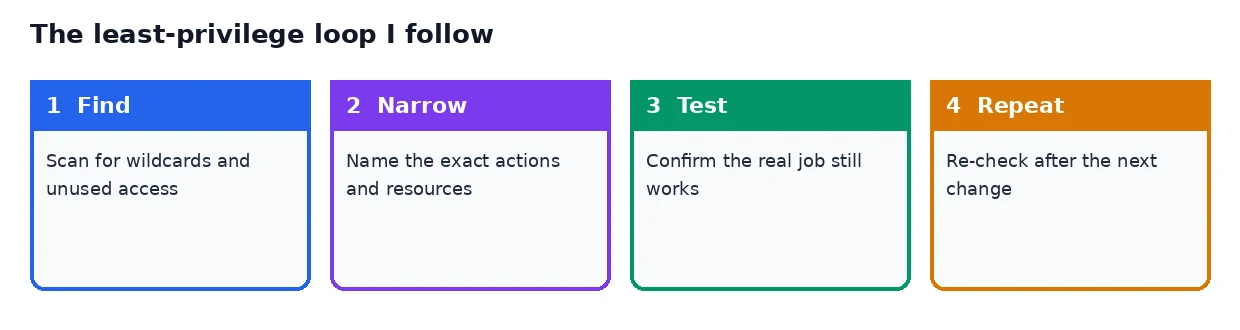
I wanted to see this problem up close, so I built a deliberately sloppy policy in a lab, checked it with two different tools, and rewrote it. The short answer to “how do I get to least privilege” is that you start broad if you must, find the wildcards, narrow them to exact actions and resources, test, and repeat. One result in my lab surprised me, and it changed how I think about policy linters.
Limits first: this lab used policy files on my own machine, not a live production environment. I ran two offline checks. I did not run AWS’s own IAM Access Analyzer for this post, so what I say about it comes from AWS’s documentation, not from my own results. Treat the policies below as lab examples, not a template for your account.
The sloppy policy I started with
The scenario is a small internal app that stores report files in S3. The lazy first version of its role looked like this, and I’m sure plenty of real accounts have something similar:
{
  "Version": "2012-10-17",
  "Statement": [
    { "Sid": "S3Everything", "Effect": "Allow", "Action": "s3:*", "Resource": "*" },
    { "Sid": "PassAnyRole",  "Effect": "Allow", "Action": "iam:PassRole", "Resource": "*" }
  ]
}
It works. The app can read and write reports. It can also delete every bucket in the account, change any bucket policy, switch off public-access protections, and hand any role to a service. None of that was ever needed.
I also made a second, even worse version: "Action": "*" on "Resource": "*", which is effectively administrator access. I use it later to show what a linter will and will not tell you.
Step 1: Find the wildcards
The first thing I check is blunt: where are the stars? I wrote a small Python script that reads a policy and flags three patterns: a bare * action, a service-wide wildcard like s3:*, and * in the resource list. It also raises a high-severity flag for iam:PassRole on every resource, because that permission can let someone use a more powerful role than their own.
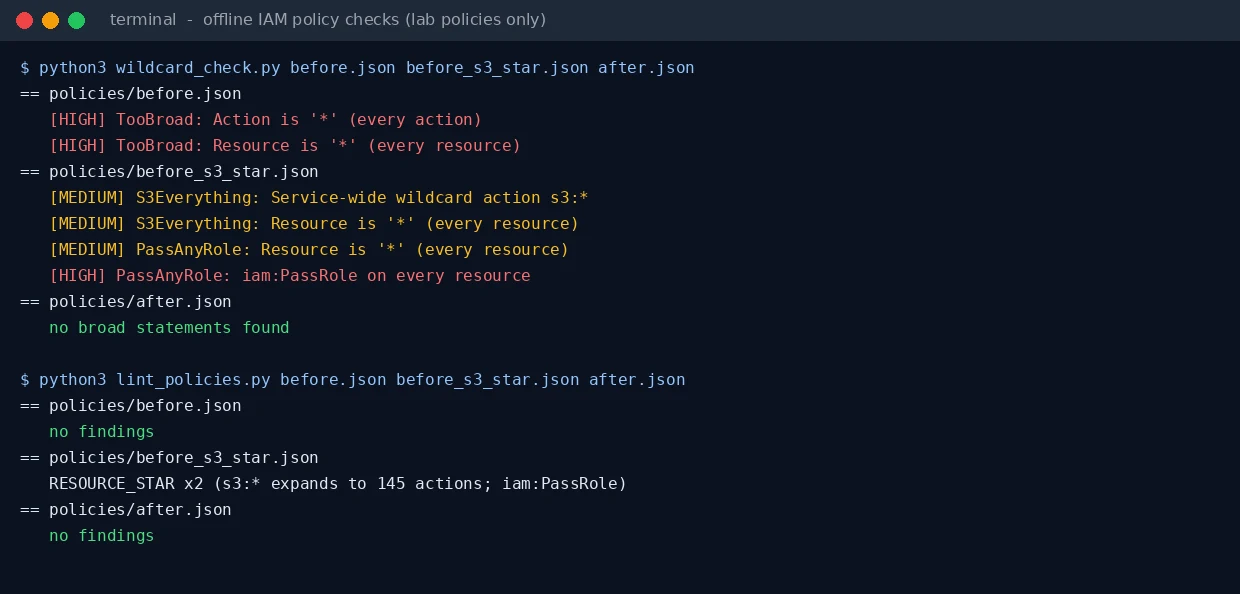
The results matched what I expected:
- The “administrator” policy got two high-severity flags: every action, every resource.
- The sloppy S3 policy got medium flags for
s3:*and the wide resource, and a high flag foriam:PassRoleon*. - The tightened policy got no flags.
Nothing clever here. A wildcard scan is crude, but crude is useful. It takes seconds, it needs no cloud account, and you can run it before anything is deployed.
Step 2: Run a proper linter (and learn what it won’t tell you)
Next I ran the same files through Parliament, an open-source linter for AWS IAM policies. I was curious how much a dedicated tool would add.
Here is the surprise. Parliament reported no findings at all for the “administrator” policy. For the sloppy S3 policy, it flagged the wildcard resource problems, and it expanded s3:* into 145 individual actions, which is a good way to feel how much s3:* really grants. But for Action: * on Resource: * it said the policy was fine.
That is not a bug. A linter checks whether a policy is valid and whether it uses actions and resources correctly. A policy that gives away everything is perfectly valid. It is just a terrible idea.
I learned two things from this:
- A clean linter result means “well-formed”, not “safe”. I would have been wrong to treat it as approval.
- You need a check for breadth, not just correctness. That is why my wildcard script sat next to the linter, not instead of it.
Step 3: What AWS’s own analyzer adds
This is the part I have not run myself, so I’ll keep it to what AWS documents. IAM Access Analyzer offers several capabilities that go beyond my lab checks. According to AWS’s Access Analyzer features page, it validates policies before you deploy them (for example, it flags iam:PassRole with an asterisk in the Resource element as a security warning), reports unused roles, access keys and permissions, and can generate a fine-grained policy based on access activity recorded in CloudTrail.
That last feature matters because it tackles the hardest part of least privilege: knowing what the app really uses. My lab can’t do that. It has no live traffic to learn from. If you work in a real account, this is where I would go next, using a free-tier account and a test role, not production.
Step 4: Rewrite the policy to what the app actually needs
With the wildcards found, the rewrite is about answering three plain questions: which actions, on which resources, under which conditions?
For my report app, the real need was reading and writing files under one folder in one bucket, and listing that folder:
{
  "Version": "2012-10-17",
  "Statement": [
    {
      "Sid": "ReadWriteOneBucketPrefix",
      "Effect": "Allow",
      "Action": ["s3:GetObject", "s3:PutObject"],
      "Resource": "arn:aws:s3:::example-lab-reports-bucket/reports/*"
    },
    {
      "Sid": "ListOneBucket",
      "Effect": "Allow",
      "Action": "s3:ListBucket",
      "Resource": "arn:aws:s3:::example-lab-reports-bucket",
      "Condition": { "StringLike": { "s3:prefix": ["reports/*"] } }
    }
  ]
}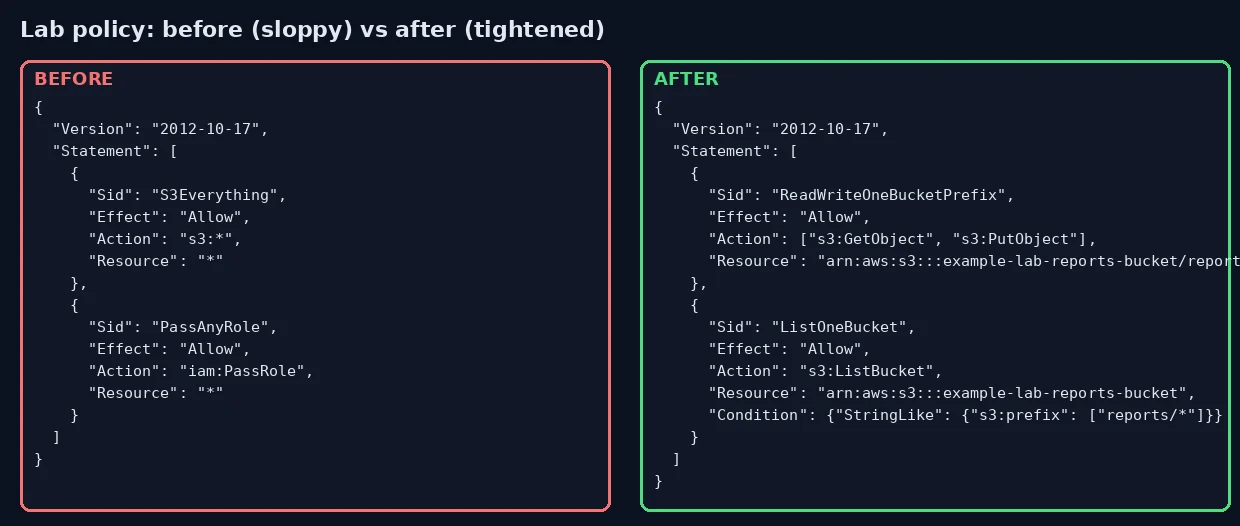
The iam:PassRole statement is gone entirely, because the app never hands roles to anything. Both checkers came back clean on this version.
A few details that tripped me up while writing it:
s3:ListBucketapplies to the bucket, not the objects. The bucket ARN has no/*, and that is easy to get wrong.- Object actions need the
/*path.GetObjectandPutObjectapply to objects, so the resource needs a path. - Clean checks don’t prove the app still works. That is the next step.
Step 5: Test it, then keep checking
A tighter policy that breaks the app is a failed fix. The safe way to roll it out is:
- Attach the new policy to a test role and run the real job against a test bucket.
- Watch for access-denied errors in the logs.
- Add back only what the error shows is truly needed, one action at a time.
- Keep a short note of why each action is there.
Then repeat. Permissions grow over time, so a policy that is tight today can be wide again after the next “just make it work” change.
Mistakes I would avoid
- Treating a linter pass as a security pass. My lab showed a linter happily accepting full administrator access.
- Narrowing the action but leaving
Resource: *. I almost did this. A tidy action list on every resource is still very wide. - Forgetting
iam:PassRole. It looks harmless, but on*it can let one identity act through a more powerful role. - Copying a big managed policy “to get going”. You inherit hundreds of permissions you will never review.
- Tightening in production first. Test on a copy, or you will find out about the broken permission from an angry user.
- Never revisiting. Least privilege is a loop, not a one-time rewrite.
- Using real company accounts for experiments. Use a personal free-tier account with a billing alert, and delete everything afterwards.
Where I’d go from here
For me, the main lesson was that the checks that matter most are boring ones: look for stars, name the exact actions, name the exact resources, test, and look again. If you want the same habit applied to another way staff create risk, my article on shadow AI and data leaks covers a different version of “everyone has more access than they should”. And since stolen credentials are how overly broad permissions get abused, how attackers use AI to write better phishing shows one way those credentials get taken in the first place.
The AWS documentation on security best practices in IAM also treats granting least privilege as a core practice, and it is worth reading alongside this. For the open-source linter I used, see Parliament on GitHub.
I’m confident about the method and unsure about scale. My lab had two small policies, not a real account with hundreds of roles, so I can’t say how the process feels at that size, or how well the analyzers rank findings there. If you try this, start with a personal free-tier account, change one role at a time, and keep the old policy handy until the new one has proven itself.
The lab files used in this article are available for download: wildcard_check.py, lint_policies.py, and the three policy files: after.json, before.json, before_s3_star.json. They only read local JSON files and do not connect to AWS.