MFA Everywhere: The Accounts, Break-Glass Users and Service Paths People Forget
“We’ve turned on MFA for everyone” is one of the most reassuring sentences in security, and one of the least reliable. It usually means MFA is on for everyone somebody remembered. The people and paths nobody thought about are exactly where an attacker goes looking.
I wanted to see how those gaps look in practice, so I built a pretend cloud account with the kinds of holes I’d expect to find, then audited it. The short answer to “what gets missed” is: people added in a hurry, emergency admin accounts, access keys that sidestep console MFA, machine identities that can’t use MFA at all, and policies written with one wrong word.
Limits first: this is a lab. I used moto, a mock of AWS that runs on my own machine, and I planted the gaps on purpose to mirror common patterns. The counts below reflect how I built the account, not a survey of real companies, and I haven’t audited a production environment.
The lab account
I created seven identities in the mock account, each one a stand-in for something I’d expect to find in a real one:
- alice: a console user with MFA enabled. The good case.
- bob: a console user who never finished enrolling.
- carol: a console user with MFA, who also has an active access key.
- contractor-dev: added quickly for a short project, with a password and an access key and no MFA.
- svc-deploy: a service identity with one access key and no password.
- svc-old-backup: a forgotten service identity with two active keys.
- breakglass-admin: an emergency account with a password, full admin rights and no MFA.
Then I wrote a small script that reads the account’s IAM credential report, which is a standard export of every identity’s password, MFA and access key status, and sorts each one into a category.
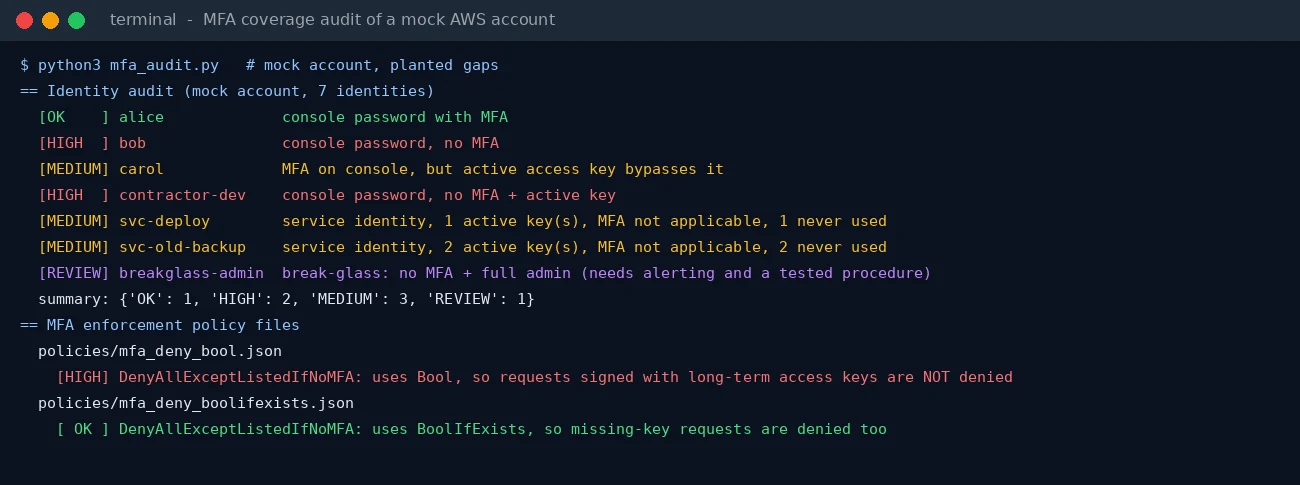
Out of seven identities, exactly one was fine. I rigged that on purpose, but the shape of the result is what matters: the clean case was the exception, and each of the other six failed in a different way. Here are those ways.
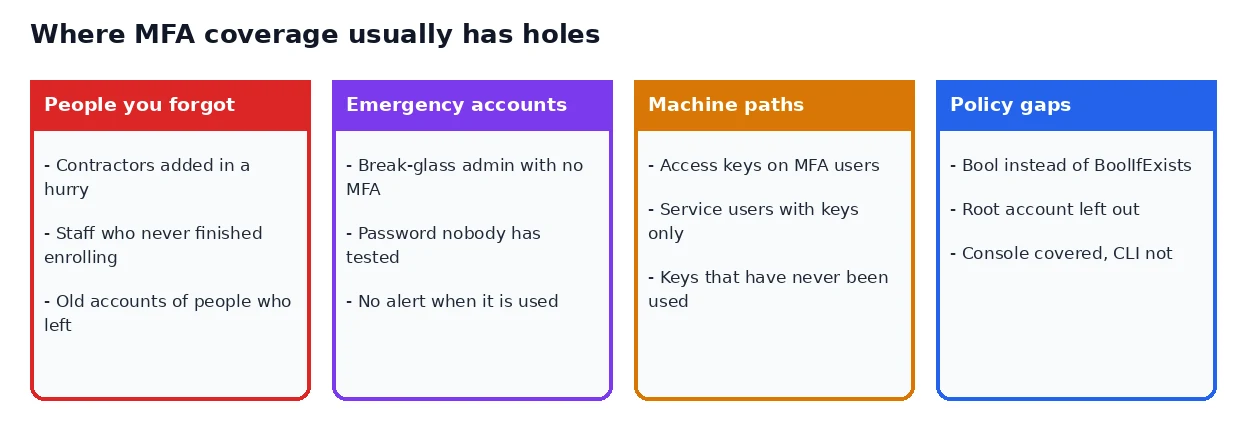
Gap 1: The people you forgot
The two high-severity results were bob and contractor-dev: console passwords with no MFA. They look like different problems but they come from the same place, which is that enrolment depended on a person remembering to do it.
Bob is the half-finished enrolment. He got an account, logged in once, and the “set up MFA later” prompt never came back. Contractor-dev is the hurried addition. Somebody needed access for a two-week project, created the account in five minutes, and nobody went back to review it.
The audit caught both because it looked at every account instead of asking people. If you do one thing after reading this, export your own credential report, filter for console passwords with no MFA, and read every name on the list. I’d expect to recognise most of them and be surprised by a few.
Gap 2: Access keys that sidestep console MFA
Carol is the case I find sneakiest. She has MFA on her console login, so a quick glance says she’s covered. But she also has an active access key, and that key works on its own. Anyone who gets hold of it can make API calls without ever being asked for a second factor.
This is also where policies go wrong, and it’s the part of the lab I’m most glad I tested. A common way to enforce MFA is a deny policy that blocks everything unless the request was made with MFA. AWS documents this pattern in its example policy for letting users manage their own credentials, and notes that the IfExists version of the Boolean operator is what denies users who are making API calls with long-term credentials such as an access key. See AWS’s self-management policy example.
The reason is subtle. The MFA condition key is only present on requests made with temporary credentials. For a request signed with a long-term access key, the key isn’t “false”, it’s absent. A plain Bool check against “false” doesn’t match an absent key, so the deny never fires. AWS’s support knowledge base describes the same behaviour in its article on MFA policies that work in the console but not the CLI.
I added a check to my script that reads policy files and flags this exact mistake.
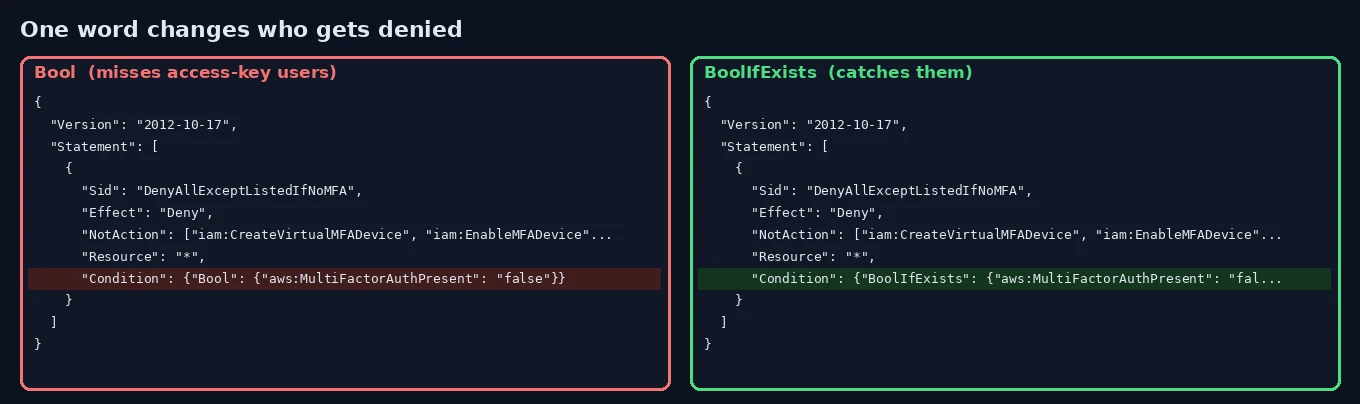
My script flagged the first policy as high risk and passed the second. I can’t tell you how a real account would behave from a file check alone, because my mock doesn’t fully evaluate these conditions. I’m relying on AWS’s documentation for the behaviour, and using my script only to catch the pattern in files. Test any MFA-enforcement policy against a non-production account before you roll it out, and make sure the self-service enrolment actions are excluded so people aren’t locked out of fixing the problem.
Gap 3: Machine identities, where MFA doesn’t apply
Svc-deploy and svc-old-backup have no password, so they never appeared as “no MFA” problems. They have access keys instead, and a program can’t type in a six-digit code. My script marked them medium severity with a note that MFA isn’t applicable.
That doesn’t mean they’re fine. It means MFA is the wrong control, and you need different ones:
- Replace the key with a role where you can. I walked through how in Ditching Long-Lived Access Keys, including the things that broke.
- Delete what’s unused. In my lab, svc-old-backup had two active keys and neither had ever been used. That’s the profile of a forgotten identity that should simply be removed.
- Keep their permissions narrow, using the approach in my IAM least-privilege article.
- Be careful where you attach MFA-required deny policies. Roles assumed by services don’t carry an MFA flag, so an “MFA or deny” policy attached to a workload role could block your own applications. Keep that kind of policy on groups of human users.
Leaked keys are also how most of these identities turn into incidents, which I explored in Why Stolen Cloud Credentials Beat Software Bugs.
Gap 4: The break-glass account
My audit gave breakglass-admin a “review” label, not “high”, and I want to explain why. An emergency account is meant for the day your normal login system is down, so it’s often deliberately kept outside the usual MFA flow. That’s a trade-off, not necessarily a mistake. But it’s also a full-admin account with a password and no second factor, which makes it a very attractive target.
I haven’t run a break-glass process in production, so treat the following as practices I’d want in place, not a tested recipe:
- Document why it exists and who may use it.
- Protect the credentials by storing them offline or in a sealed process, not in a shared chat or a password sheet.
- Alert on any use. An emergency account should almost never log in, so any sign-in should page someone.
- Test it. An emergency account that doesn’t work when needed is worse than none. Check it on a schedule, and confirm the alert fires.
- Consider a hardware security key as a second factor if your setup supports it, since it doesn’t depend on a phone or a code app being reachable.
One more limit of my own lab: the mock’s credential report had no root account row, which a real report includes. My script has a check for root without MFA, but I couldn’t exercise it here. In a real account, the root user is the first thing I’d check.
Mistakes I’d avoid
- Asking people instead of checking. The credential report doesn’t rely on anyone’s memory.
- Counting console MFA as full coverage. Active access keys sit outside it.
- Using
BoolwhereBoolIfExistsis needed. It quietly exempts the very users you most need to catch. - Forgetting the self-service carve-out. A policy that blocks everything, including MFA enrolment, deadlocks its own fix.
- Treating service accounts as someone else’s problem. MFA doesn’t apply, so another control has to.
- Leaving the break-glass account unmonitored. The emergency account is the one where a quiet sign-in matters most.
- Rolling out enforcement on a Friday. Do it on a test group first.
- Treating the audit as one-off. New contractors and new keys appear all the time, so repeat it.
What I’d do this week
If I had an afternoon, I’d do the following:
- Export the credential report and list every console user without MFA.
- List every active access key, with last-used date, and delete the unused ones.
- Check the MFA-enforcement policy for
BoolversusBoolIfExists. - Write down every break-glass account and confirm there’s an alert on use.
- Check the root account has MFA.
CISA publishes plain-language MFA guidance at cisa.gov/MFA, which is a good page to share with colleagues who aren’t technical.
I’m confident in the categories, because they’re the failure modes I’d expect and my lab showed each one. I’m less sure about the proportions in real accounts, since I built mine with the holes already in it. What I’d take from the exercise is the habit: don’t ask whether MFA is on, ask which identities, keys and policies it doesn’t reach.
Want to run the audit yourself? Download build_lab_accounts.py and mfa_audit.py, plus the two example policies: mfa_deny_bool.json and mfa_deny_boolifexists.json. Keep the scripts and the policy files together, then run python3 mfa_audit.py. It runs against a local mock of AWS and never connects to a real account.