The line that made me stop scrolling was port 3306 open to 0.0.0.0/0. It was sitting right under the SSH one, in the same security group, and I had written both of them myself about ten minutes earlier. That is the strange thing about building a vulnerable lab on purpose: you know exactly what’s wrong, and it still looks uncomfortably normal on the screen.
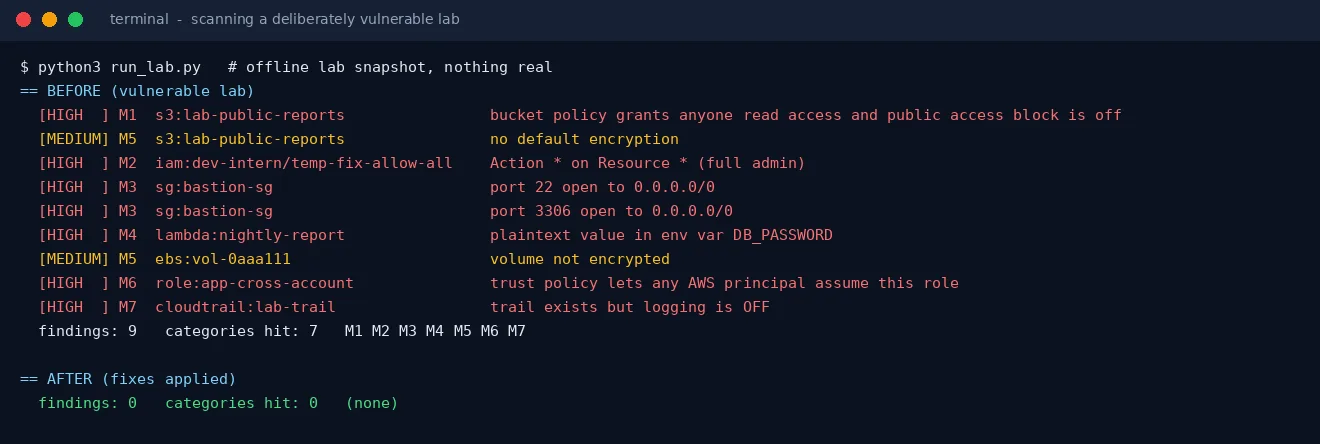
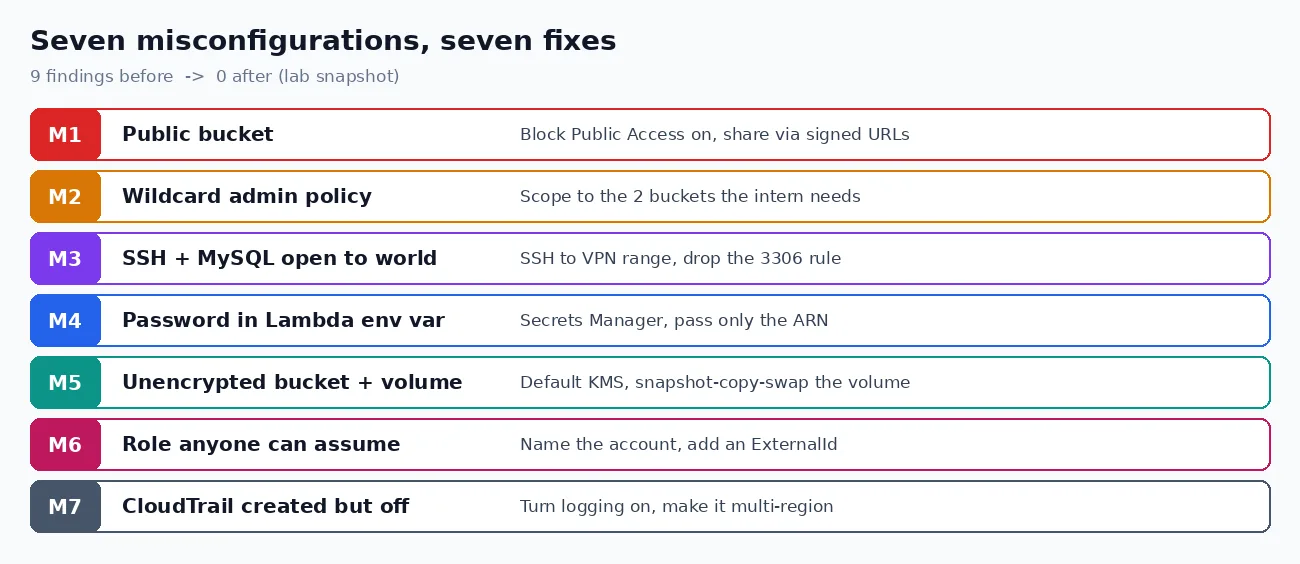
The short version of this post: my lab had seven kinds of mistake, a public bucket, a wildcard admin policy, SSH and a database port open to the world, a password in a Lambda variable, unencrypted storage, a role anyone could assume, and a CloudTrail that existed but wasn’t recording. My scanner found nine problems across those seven, and after the fixes it found none. The more useful part is what went wrong along the way, so that’s where most of this goes.
How the lab works (and what it isn’t)
I’ll be straight about the setup, because “I hacked a cloud lab” can mean a lot of things. Projects like CloudGoat deploy real, intentionally vulnerable resources into an AWS account. I did not do that. I wrote the account as a JSON snapshot shaped like the output of AWS’s own describe and list calls, planted the mistakes in it, and wrote a Python scanner that reads the file. Nothing in this post touched a live account, and nothing was exploited. It’s a configuration review, not an attack.
That has a cost. A snapshot can tell me a bucket policy says “anyone can read”, but it can’t tell me what a real request would do, and it can’t show me a mistake I didn’t think to plant. So treat the findings below as a tour of common patterns, not as proof of how often they happen. For the account I did build, the scanner and the numbers are real, and you can run them yourself.
I also put two things in the account that were fine on purpose: a private encrypted bucket, and a public load balancer group that legitimately listens on 443. I’ll come back to why.
The seven things I found
1. A bucket anyone could read
lab-public-reports had a policy granting s3:GetObject to everyone, with Block Public Access switched off. The pattern is easy to imagine: someone needs to send a report to a client, and a public bucket is the fastest way to do it. The fix is to turn on S3 Block Public Access, delete the public statement, and share through presigned links or CloudFront instead.
2. A “temporary” policy that allowed everything
The user dev-intern had a policy called temp-fix-allow-all: Action: * on Resource: *. The name is the giveaway. Nobody plans to leave admin on forever, they just don’t come back. I replaced it with read access to one bucket. If you want the longer version of doing this properly, I wrote about it in my IAM least-privilege article, and AWS’s own IAM best practices say the same thing in more formal words.
3. SSH and MySQL open to the whole internet
The bastion group allowed 22 and 3306 from 0.0.0.0/0. I restricted SSH to the VPN range in the lab and deleted the database rule entirely, since a database has no business being reachable from outside the network.
4. A password sitting in a Lambda environment variable
nightly-report had DB_PASSWORD stored in plain text in its configuration. Anyone who can read the function’s settings can read the password. The fix is to keep the secret in Secrets Manager and pass the function only the ARN. I covered the wider problem of leaked credentials in Why Stolen Cloud Credentials Beat Software Bugs.
5. Storage with no encryption
One bucket had no default encryption and one EBS volume wasn’t encrypted. Buckets are a one-line change. Volumes are not, and I’ll get to that below.
6. A role that trusted everyone
app-cross-account had a trust policy with Principal: {"AWS": "*"}. In plain terms, any AWS principal could try to assume it. I changed it to name one specific account and added an ExternalId condition.
7. A CloudTrail that was switched off
This one surprised me most, even though I planted it. The trail existed, so a quick glance at the console would say “logging is set up”. But IsLogging was false and it only covered one region. Having the thing and having it work are different, and I’ll admit I’d have skimmed past it.
Where I went wrong
My first scanner was about twenty lines and very pleased with itself. It reported 11 findings. Nine were right. Two were my scanner being wrong:
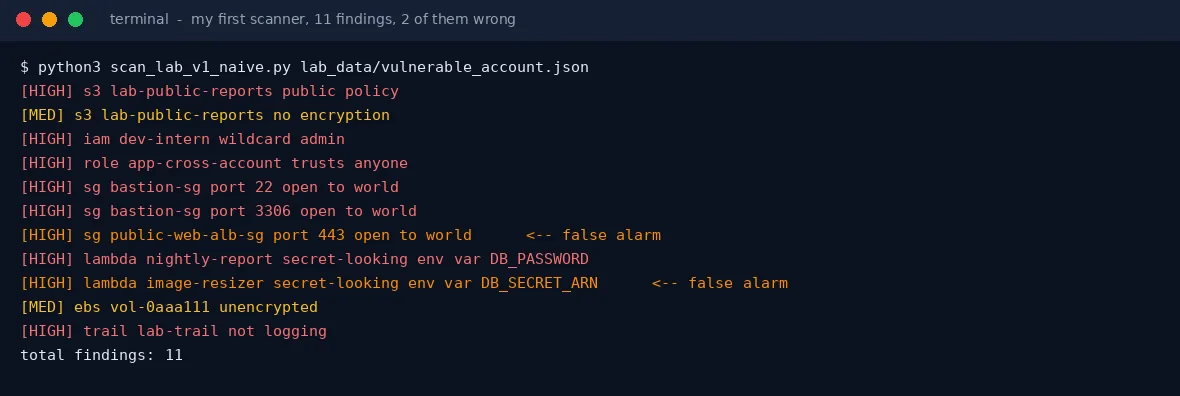
It flagged port 443 on the public load balancer, because I’d written “anything open to the world is bad” and forgot that a public website has to be open to the world. And it flagged DB_SECRET_ARN as a leaked secret because the name contains “SECRET”, when the value is only a pointer to Secrets Manager. That’s the opposite of a leak; it’s the fix.
The lesson I took from it: judge the value, not the name, and judge the context, not the rule. A scanner that cries wolf teaches people to ignore it, which is worse than having no scanner. In the final version, web ports are allowed on purpose and a variable only counts as a secret if the value isn’t a reference to a secret store. Both of my “fine” resources now pass cleanly, which is the check I trust most.
A few other things didn’t go the way I’d assumed:
- You can’t encrypt an existing EBS volume in place. My fix script just flips a flag, because it’s editing a JSON file. On a real volume you snapshot it, make an encrypted copy, and swap it in. That’s a maintenance window, not a setting.
- Removing the public bucket policy breaks whatever depended on it. In a real account, somebody’s link would stop working. Plan the replacement before you remove the old access.
- The scanner can’t see everything. It has no idea whether that wildcard policy is attached through a group, or whether the VPN range I chose is the right one. It finds patterns; a person still has to decide.
Where I’d start on a real account
I haven’t run this against a production environment, so this is the order I’d try it in, not a proven playbook:
- Check logging first. If CloudTrail isn’t recording, every other investigation is guesswork. Confirm it’s on, not just present.
- Look for anything open to the world on ports other than 80 and 443.
- Search for wildcard policies, then ask who is attached to them and why.
- Read Lambda and EC2 configuration for plaintext values. Look at what’s in them, not just what they’re called.
- Review role trust policies for
*or for accounts you don’t recognize. - Turn on Block Public Access at the account level, then see what breaks.
- Queue the encryption work for a quiet window.
If your identity side is shaky, my write-up on MFA gaps in a mock account is a good companion to this one, and the post on replacing long-lived access keys covers the credential side.
Final thoughts
What stuck with me wasn’t any single finding. It was how ordinary they all looked. None of the seven needed a clever attacker’s imagination; each one is a shortcut someone took for a reason that felt sensible at the time. The most useful habit I came away with is checking that a control works, not that it exists, and then checking my own checker for false alarms.
If you want to try it, the lab files are in the zip with this post: a snapshot, the scanner, the fix script and the runner. They read local JSON only and never connect to anything.